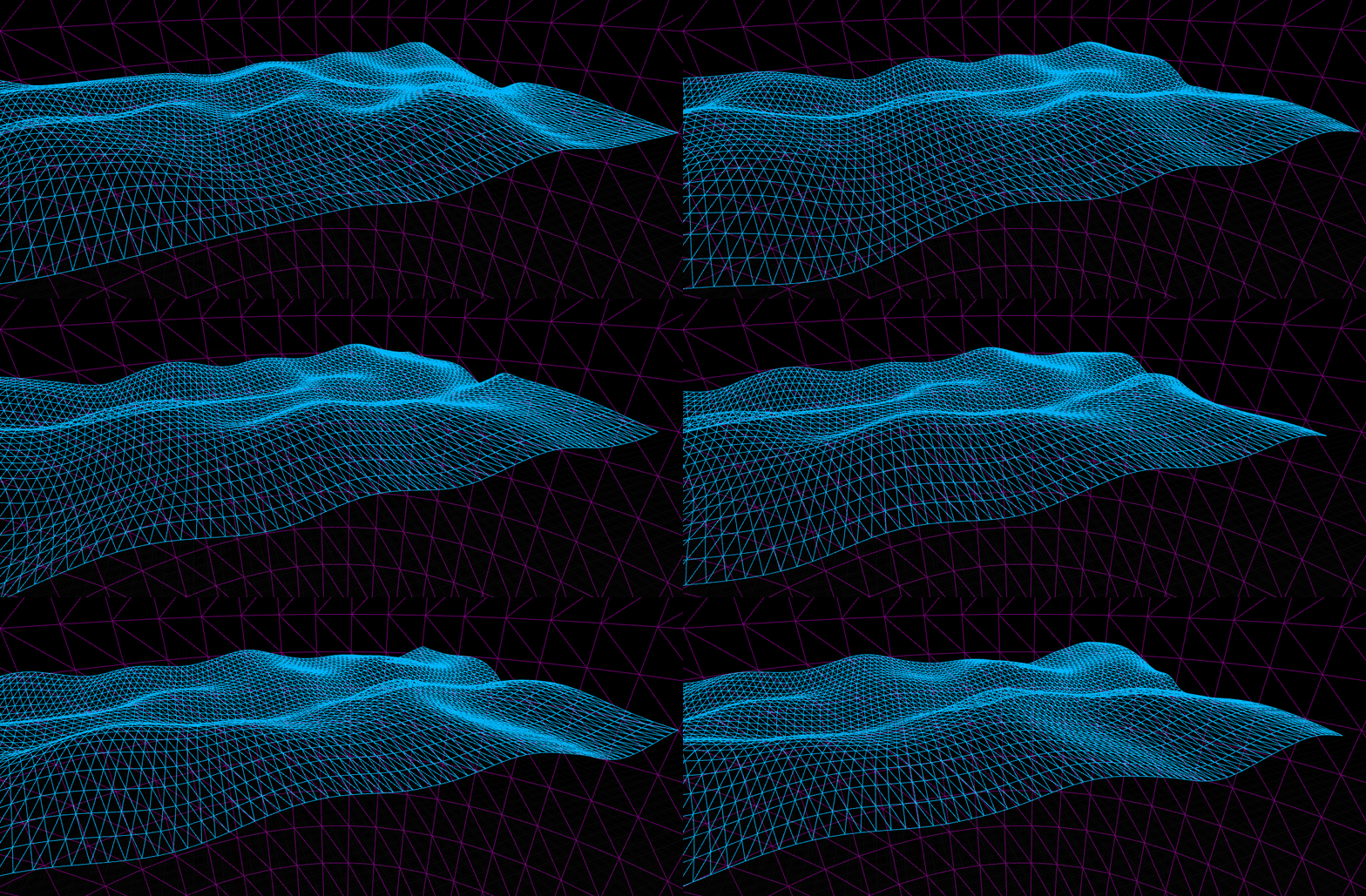
Unreal procedural terrain generator
In this post, I’m going to explore and explain a little bit about a system I’ve made to try the new ProceduralMesh component in Unreal Engine.
The main objective of that system is to generate the terrain in real-time without the necessity of updating the whole mesh, in order to do that I decided to split the terrain into some chunks, this way I can slide the entire procedural mesh component in a pre-defined direction while update only one chunk each time putting it in the front of the mesh. The image below explains better the idea behind the system.
The system could be applied on an infinity runner for example, as the update of the mesh is chunked it will be very lightweight when applied in a game even if it has more elements attached.
The first step is to create the UProceduralMeshComponent and attach it to our actor.
Mesh = CreateDefaultSubobject<UProceduralMeshComponent>(FName("Mesh"));
Mesh->SetupAttachment(GetRootComponent());
So, let’s define the structure that will store our mesh section data, like triangles, vertices, normals, UV and other important informations about the sections Let’s call this structure FSectionData.
struct FSectionData
{

public:

	FSectionData() = delete;

	FSectionData(const FSectionData& SectionData)
	{
		Triangles = SectionData.Triangles;
		Vertices = SectionData.Vertices;
		Normals = SectionData.Normals;
		UV0 = SectionData.UV0;
		YPosition = SectionData.YPosition;
		GridSize = SectionData.GridSize;
		DistanceBetweenPoints = SectionData.DistanceBetweenPoints;
	}

	FSectionData(const FGridSize& GridSize, const float& DistanceBetweenPoints);

public:

	const int GetVerticesX() const;
	const int GetVerticesY() const;
	const int GetTotalVertices() const;
	const int GetTotalCompleteTriangles() const;
	const int GetTotalTriangleIndexes() const;
	const float GetDistanceBetweenPoints() const;
	FSectionData* GetOriginalData() const;
	void SetOriginalData(const FSectionData& SectionData);

public:

	TArray<int32> Triangles;
	TArray<FVector> Vertices;
	TArray<FVector> Normals;
	TArray<FVector2D> UV0;
	float YPosition = 0.0f;

private:

	FGridSize GridSize;
	float DistanceBetweenPoints;
	TUniquePtr<FSectionData> OriginalData;
};
Here’s a brief definition of the structure members:
- Triangles: Stores the triangles data of the section.
- Vertices: Stores the vertices data of the section.
- Normals: Stores the normals data of the section.
- UV0: Assuming that the section will have one UV, this property stores the UV data of the section.
- GridSize: The number of tiles in the X-axis and Y-axis.
- YPosition: It’ll store the Y-axis position of the section.
- DistanceBetweenPoints: Distance between 2 vertices on the grid.
- OriginalData: Stores the data without any modification. It’ll be better explained later.
As a further detail, we will remove the default constructor to force our system to use the custom constructor FSectionData(const FGridSize& VerticesAmount) this way we can reserve the necessary memory before insert data inside our arrays in order to avoid the memory reallocation on array resizing when our grids are large.
Below we have the implementation of our custom constructor:
FSectionData::FSectionData(const FGridSize& GridSize, const float& DistanceBetweenPoints)
: GridSize(GridSize), DistanceBetweenPoints(DistanceBetweenPoints)
{
	this->Triangles.Reserve(GetTotalTriangleIndexes());
	this->Vertices.Reserve(GetTotalVertices());
	this->Normals.Reserve(GetTotalVertices());
	this->UV0.Reserve(GetTotalVertices());
}
Remember to declare our custom type FGridSize based on an FIntPoint just for a readable purpose:
typedef FIntPoint FGridSize;So let’s define the functions that will be util for us when we need to get the number of vertices in a chosen axis or the total amount of vertices:
const int FSectionData::GetVerticesX()
{
	return (this->GridSize.X + 1);
}

const int FSectionData::GetVerticesY()
{
	return (this->GridSize.Y + 1);
}

const int FSectionData::GetTotalVertices()
{
	return GetVerticesY() * GetVerticesX();
}

const int FSectionData::GetTotalCompleteTriangles()
{
	return this->GridSize.X * this->GridSize.Y * 2;
}

const int FSectionData::GetTotalTriangleIndexes()
{
	return GetTotalCompleteTriangles() * 3;
}

const float FSectionData::GetDistanceBetweenPoints()
{
	return this->DistanceBetweenPoints;
}

FSectionData* FSectionData::GetOriginalData() const
{
	return OriginalData.Get();
}

void FSectionData::SetOriginalData(const FSectionData& SectionData)
{
	OriginalData = MakeUnique<FSectionData>(SectionData);
}
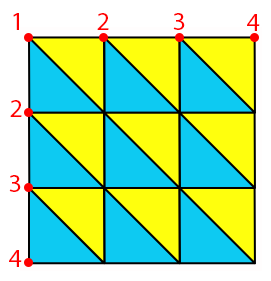
The reason that GetVerticesX and GetVerticesY returns the number of tiles plus 1 is represented in the image below, as you can see, the number of vertices in a row is the number of tiles plus 1. In the same way the reason that the GetTotalCompleteTriangles returns the grid size * 2 is that it’s the number of triangles represented by the blue and yellow color below. GetTotalTriangleIndexes is returning the total of vertex indices that compose a triangle, so it’s the triangles * 3.
Constructing a mesh grid
Before we go deeper, we need to create the function that will generate a simple mesh grid points, it will help us keep our code clear because all the sections are grids, so let’s take a look at the logic behind it.
FSectionData ATerrainGenerator::GenerateGrid(const FGridSize& GridSize, const float& DistanceBetweenPoints)
{
	FSectionData TemporarySection(GridSize, DistanceBetweenPoints);
	const int VerticesX = TemporarySection.GetVerticesX();
	const int VerticesY = TemporarySection.GetVerticesY();

	for (int32 y = 0; y < VerticesY; y++)
	{
		for (int32 x = 0; x < VerticesX; x++)
		{
			TemporarySection.Vertices.Emplace(
			FVector	(
					TemporarySection.GetDistanceBetweenPoints() * x,
					TemporarySection.GetDistanceBetweenPoints() * y,
					0.0f
					)
			);
			TemporarySection.Normals.Emplace(0, 0, 1);
			TemporarySection.UV0.Emplace(x / VerticesX, y / VerticesY);

			if (x < GridSize.X && y < GridSize.Y)
			{
				//Blue triangle -- Don't care about that now, keep reading
				TemporarySection.Triangles.Add(x + (y * VerticesX));
				TemporarySection.Triangles.Add(x + ((1 + y) * VerticesX));
				TemporarySection.Triangles.Add((1 + x) + ((1 + y) * VerticesX));

				//Yellow triangle -- Don't care about that now, keep reading
				TemporarySection.Triangles.Add(x + (y * VerticesX));
				TemporarySection.Triangles.Add((1 + x) + ((1 + y) * VerticesX));
				TemporarySection.Triangles.Add((1 + x) + (y * VerticesX));
			}
		}
	}

	return TemporarySection;
}
We will emplace all the vertices, normals and UVs for all points (vertices), don’t worry about the direction of the normals and the UV coordinates right now, we will leave it as default just to go ahead in the code and reach our objective.
An important condition here is on line 15, as we will form triangles with already existent vertices, it’s not necessary to iterate the last row and column of vertices. The triangles array is a sequential 3 by 3 of vertices array indexes. Look at this example:
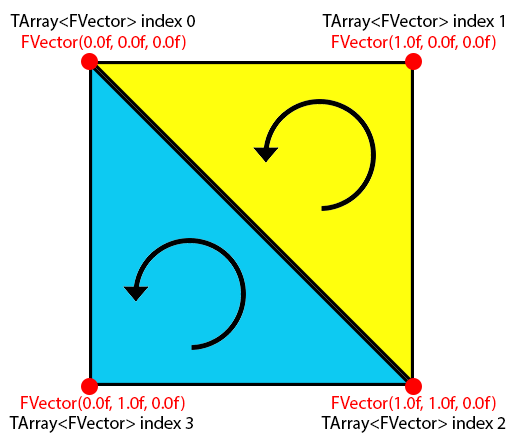
TArray<FVector> Vertices;
Vertices.Add(FVector(0.0f, 0.0f, 0.0f));
Vertices.Add(FVector(1.0f, 0.0f, 0.0f));
Vertices.Add(FVector(1.0f, 1.0f, 0.0f));
Vertices.Add(FVector(0.0f, 1.0f, 0.0f));

TArray<FVector> Triangles;

//Blue triangle
Triangles.Add(0);
Triangles.Add(3);
Triangles.Add(2);

//Yellow triangle
Triangles.Add(0);
Triangles.Add(2);
Triangles.Add(1);
The triangles must be added using a counter wise direction, so in the code above you can see the sequence for the blue and the yellow triangles.
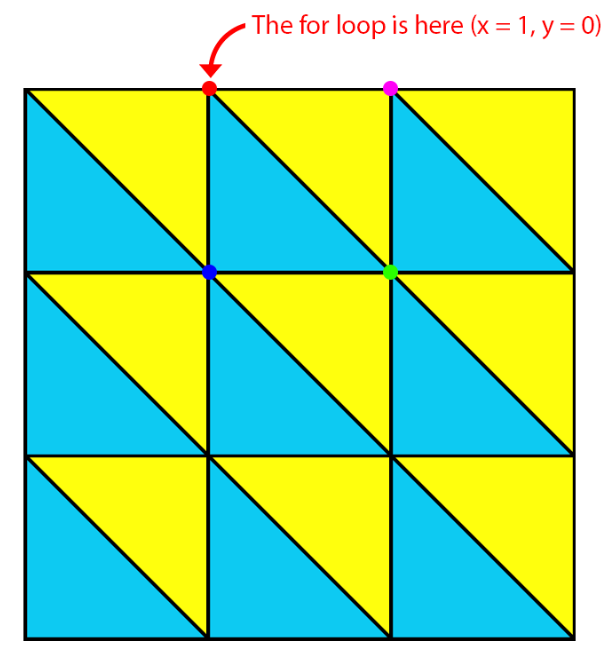
Imagine that the for loop is at x = 1 and y = 0 like in the image above, so, the red vertex index is x + y * 4, so as the y grows we multiply it by the row size. In the same way, we can do it for the other vertices:
⬤
x + (y * rowSize)
⬤
(1 + x) + (y * rowSize)
⬤
(1 + x) + ((1 + y) * rowSize)
⬤
x + ((1 + y) * rowSize)
Translating the math above to our code, we have the code below that can be seen at line 17 inside the conditional of our function GenerateGrid:
// Blue triangle
TemporarySection.Triangles.Add(x + (y * VerticesX));
TemporarySection.Triangles.Add(x + ((1 + y) * VerticesX));
TemporarySection.Triangles.Add((1 + x) + ((1 + y) * VerticesX));

// Yellow triangle
TemporarySection.Triangles.Add(x + (y * VerticesX));
TmporarySection.Triangles.Add((1 + x) + ((1 + y) * VerticesX));
TemporarySection.Triangles.Add((1 + x) + (y * VerticesX));
First test
If everything are working, we can create a section for test using the code below on our AActor constructor:
FSectionData Section = GenerateGrid(FGridSize(10, 10), 100.0f);
Mesh->ClearAllMeshSections();
Mesh->CreateMeshSection(
		0,
		Section.Vertices,
		Section.Triangles,
		Section.Normals,
		Section.UV0,
		{},
		{},
		false
);
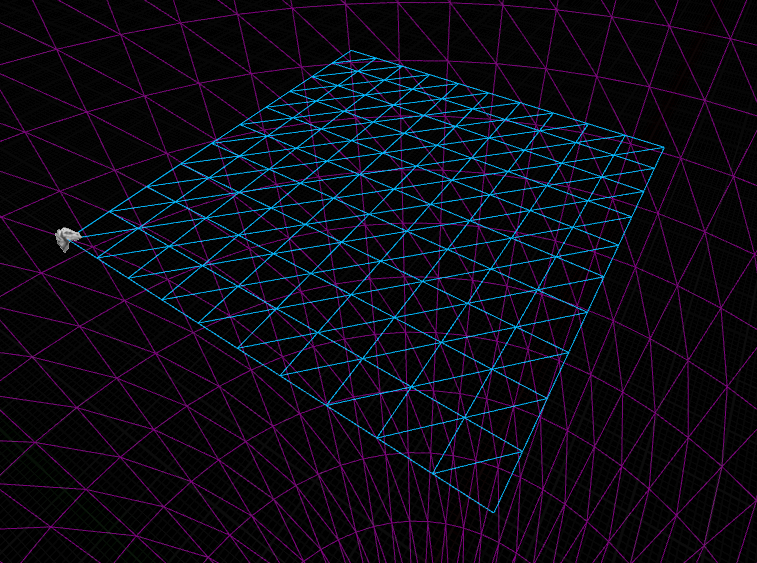
So we must see a grid 10×10 with 100 unreal units between each grid’s vertex. Take a look at the result:
Creating the whole terrain
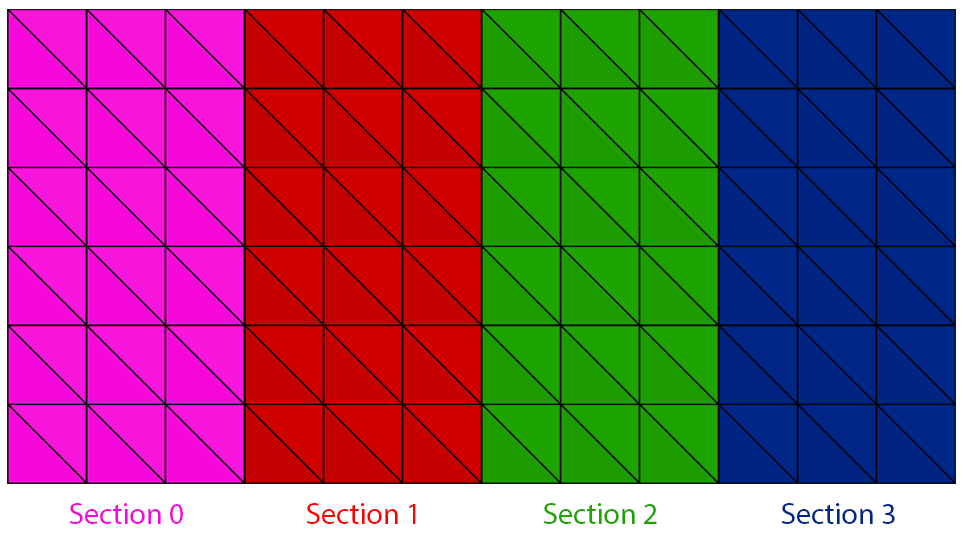
Now we know that all is working fine, we can start our function to create various sections that will compose our terrain. Our objective is to construct a terrain larger on Y-axis than X-axis, so we will create thin slices of our terrain using our GenerateSection function, look at the image:
Our first concern must be where we will store our sections, so we will declare a member of our AActor called CreatedSections and some others properties that will serve us to handle the system.
private:

	TArray<FSectionData> CreatedSections;

public:

	UPROPERTY(EditAnywhere, Category = "Setup")
	FIntPoint TerrainSize = FIntPoint(17000, 10000);

	UPROPERTY(EditAnywhere, Category = "Setup")
	float TerrainDensity = 0.003f;

	UPROPERTY(EditAnywhere, Category = "Setup")
int32 SectionsNumber = 5;- TerrainSize: The size of the complete terrain, which means the size of all sections together
- TerrainDensity: The number of vertices per unreal unit.
- SectionsNumber: The number of segments in the X-axis of the terrain
Now we can implement our function that will be responsible to generate all the sections that compose the whole terrain. Let’s see the code and the explanation:
void ATerrainGenerator::GenerateTerrain()
{
	CreatedSections.Empty();
	CreatedSections.Reserve(SectionsNumber);
	Mesh->ClearAllMeshSections();

	const FIntPoint PointsAmount(TerrainSize.X * TerrainDensity, TerrainSize.Y * TerrainDensity);
	const int PerSectionX_Points = PointsAmount.X / SectionsNumber;
	const int LastSectionX_Points = PerSectionX_Points + FMath::Fmod(PointsAmount.X, SectionsNumber);
	const float Density = (float)TerrainSize.X / (float)PointsAmount.X;
	for (int Sec = 0; Sec < SectionsNumber; Sec++)
	{
		const int nSec = CreatedSections.Emplace(
			GenerateGrid((Sec < (SectionsNumber - 1))
				? FGridSize(PerSectionX_Points, PointsAmount.Y)
				: FGridSize(LastSectionX_Points, PointsAmount.Y),
				Density)
		);

		for (FVector& Vertex : CreatedSections[nSec].Vertices)
		{
			Vertex += FVector(Density * PerSectionX_Points, 0.0f, 0.0f) * Sec;
		}

		Mesh->CreateMeshSection(
			nSec,
			CreatedSections[nSec].Vertices,
			CreatedSections[nSec].Triangles,
			CreatedSections[nSec].Normals,
			CreatedSections[nSec].UV0,
			{},
			{},
			false
		);
        CreatedSections[nSec].SetOriginalData(CreatedSections[nSec]);
	}
}- Line 1-3: We need to clean up our CreatedSections array in case of regeneration. So we must reserve the memory to avoid array resizing. The last step is clear all sections inside our procedural component.
- Line 7: That’s our real density computed by multiplying between our two properties, TerrainSize and TerrainDensity.
- Line 8-9: Here we are calculating the size of our sections. Note that the last section must be different from the other sections because if our density is not an exact divisor of the size, there will be a rest of the division. So, we take the
FMath::Fmodand added it with our original section size, this way the last section has some chance to be bigger than the others. - Line 10: Adjusted density since our division on line 8 is truncated.
- Line 11: Our main loop of sections
- Line 13-18: Here we create the section grid using
GenerateGridtaking into account the difference between the last section. - Line 20-23: This add in the vertex position will make all sections stay side by side
- Line 25-34: Here we are using the
CreateMeshSectionfunction fromUProceduralMeshComponent - Line 35: Generate our original data.
If we try to make some tests right now using that new function, we will see just one section because all the sections are being created at the same location. We will solve it by creating our UpdateTerrainSection function.
void ATerrainGenerator::UpdateTerrainSection(FSectionData& Section)
{
	for (int VertexI = 0; VertexI < Section.GetTotalVertices(); VertexI++)
	{
		TerrainModify(
			Section.Vertices[VertexI],
			Section.Normals[VertexI],
			Section.UV0[VertexI],
			Section.GetOriginalData()->Vertices[VertexI],
			Section.GetOriginalData()->Normals[VertexI],
			Section.GetOriginalData()->UV0[VertexI],
			Section
		);
	}
}
As you can see we are calling a function named TerrainModify, this function will be responsible to modify the vertex that’s passed through the parameters. To make our life easier we will pass these parameters translated directly to the data of the section and the original section, as we made on the code above. This step is important because here we are using our OriginalData parameters, the reason to use it is to keep a copy of our original vertex location, this way we will be able to make some calculations like knowing the distance between the current vertex position after the modification and the original vertex position. Now, let’s code our TerrainModify function:
void ATerrainGenerator::TerrainModify(FVector& Vertex,
	FVector& Normal, FVector2D& UV0, FVector& OriginalVertex,
	FVector& OriginalNormal, FVector2D& OriginalUV0,
	FSectionData& MeshInformation)
{
	/** X **/
	Vertex.X = OriginalVertex.X;

	/** Y **/
	Vertex.Y = OriginalVertex.Y;

	/** Z **/
	Vertex.Z = OriginalVertex.Z;
}
Second test
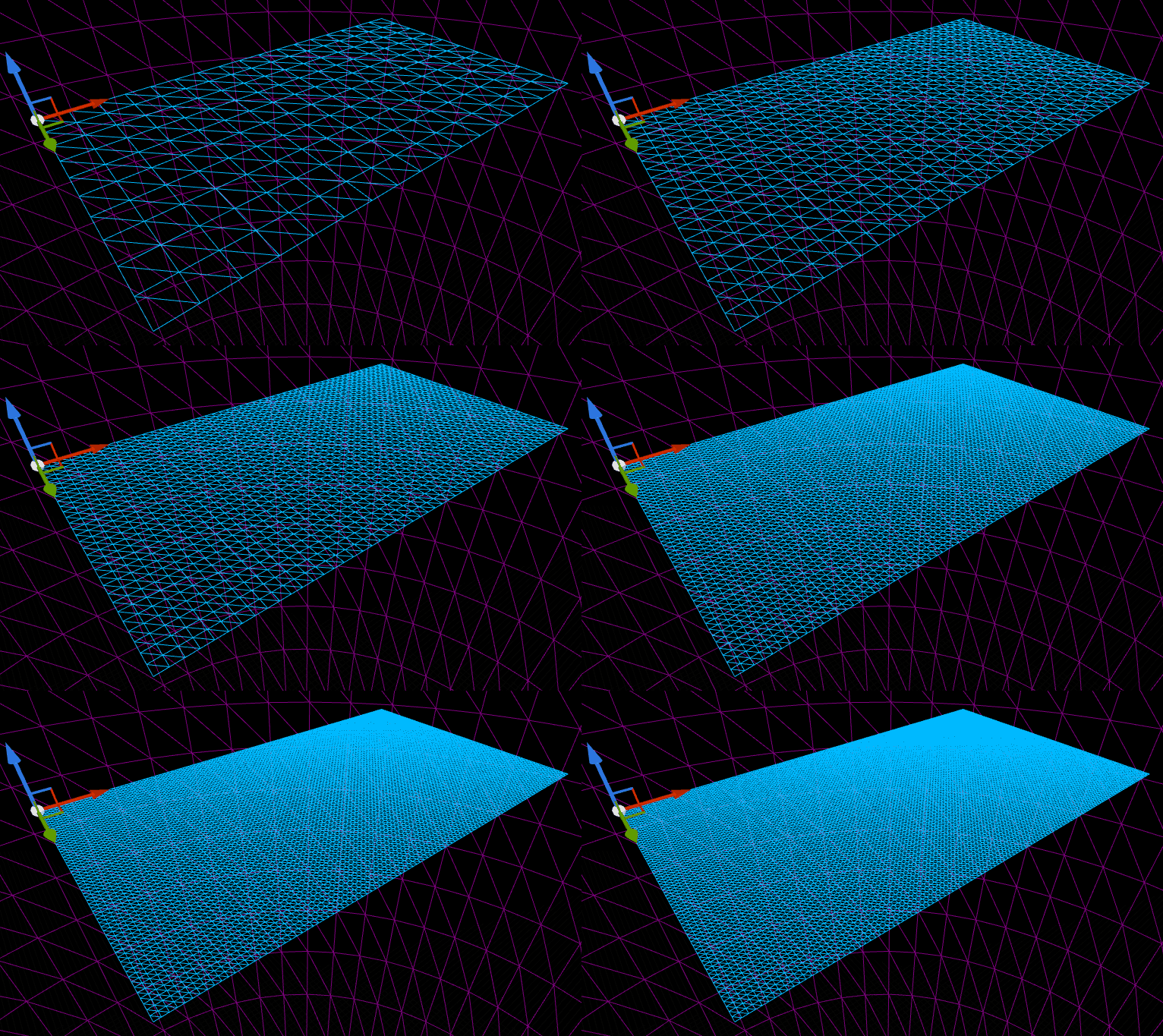
Now we can test our system again, we can manipulate the SectionsNumber property of our actor however we want, take a look at the animation below showing the SectionsNumber being incremented:
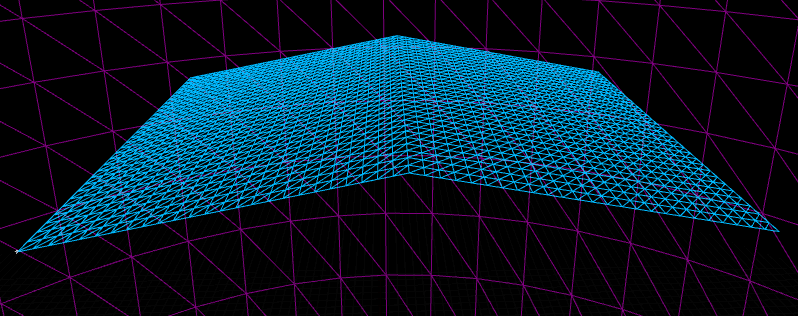
We can test our TerrainModify too, now we can use our creativity and math to model the grid the way we want. For example, if we put (OriginalVertex.Y < 5000) ? OriginalVertex.Y / 5.0f : (5000.0f / 5.0f) - ((OriginalVertex.Y - 5000.0f) / 5.0f) on our Vertex.Z parameter like this:
/** X **/
Vertex.X = OriginalVertex.X;

/** Y **/
Vertex.Y = OriginalVertex.Y;

/** Z **/
Vertex.Z = (OriginalVertex.Y < 5000) ? OriginalVertex.Y / 5.0f : (5000.0f / 5.0f) - ((OriginalVertex.Y - 5000.0f) / 5.0f);
We’ll have the following result:
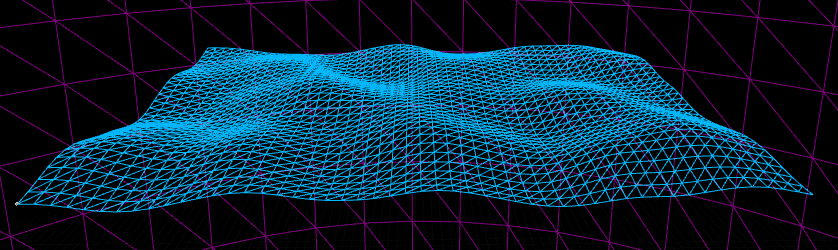
Applying some PerlinNoise2D and adjusting the noise scale and the amplitude as shown in the code below:
/** X **/
Vertex.X = OriginalVertex.X;

/** Y **/
Vertex.Y = OriginalVertex.Y;

/** Z **/
Vertex.Z = FMath::PerlinNoise2D(FVector2D(OriginalVertex.X * 0.0005f, Vertex.Y * 0.0005f)) * 450.0f;
We can see the following result:
Keeping the terrain moving
The next step is coding the movement of our terrain and the reallocation of the sections. To do this, we will create a property inside our actor called TerrainSpeed
[…]
nicenice
are you going to continue this?
Hey J, I’m really busy right now, but I would like to continue that post in the future, unfortunately I don’t have a deadline for that.